


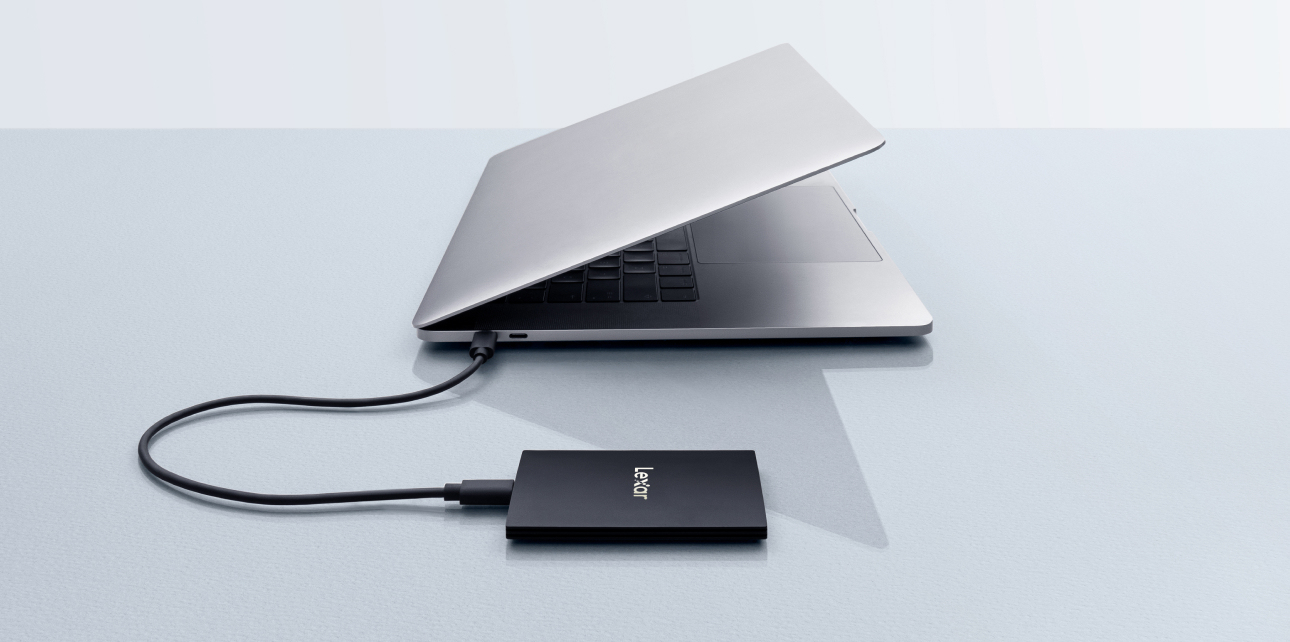
Mac users rely on fast, reliable storage solutions to keep up with their demanding workflows, whether it’s editing high-resolution videos, managing extensive photo libraries, or working with large design files.
An external SSD for Mac offers the perfect combination of speed, portability, and compatibility to enhance your storage experience.
In this guide, we’ll explore the top external SSDs tailored for Apple users, highlighting key features, compatibility, and use cases to help you find the best option for your Mac.
Why Choose an External SSD for Mac?
External SSDs are an essential accessory for Mac users looking to expand storage, improve data transfer speeds, or maintain portability. Here’s why they’re a great investment:
- Increased Speed: External SSDs are significantly faster than traditional HDDs, making file transfers and backups quicker and more efficient.
- Portability: Lightweight and compact, external SSDs are easy to carry, making them ideal for professionals on the go.
- Expanded Storage: With limited internal storage on many Mac models, external SSDs provide a cost-effective way to store large files and applications.
- Mac Compatibility: Many external SSDs are designed specifically to work seamlessly with macOS and its file systems, such as APFS and HFS+.
What to Look for in an External SSD for Mac
When choosing an external SSD for your Mac, consider the following factors to ensure it meets your needs:
- Speed and Performance: Look for read/write speeds of at least 1,000MB/s for optimal performance with demanding applications.
- Connectivity: Macs often use USB-C and Thunderbolt 3 or 4 ports. Choose an SSD that supports these interfaces for the best speeds and compatibility.
- Capacity: Determine your storage needs—1TB is ideal for moderate use, while 2TB or more is better for video editors or professionals handling large files.
- Durability: If you travel frequently, opt for an SSD with a rugged, shock-resistant design.
- macOS Compatibility: Ensure the SSD is formatted or easily reformatable for macOS file systems like APFS or HFS+.
Top External SSDs for Mac in 2025
Here are the best external SSDs tailored for Apple users:
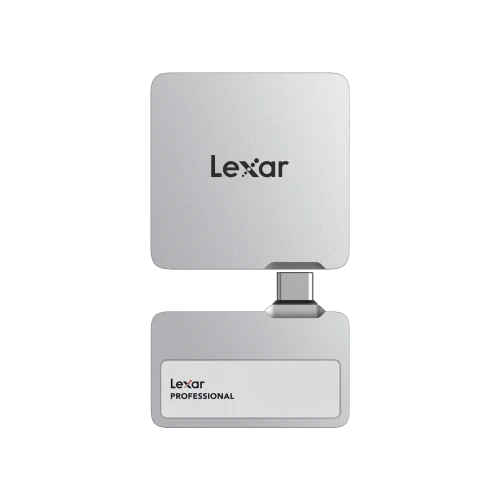
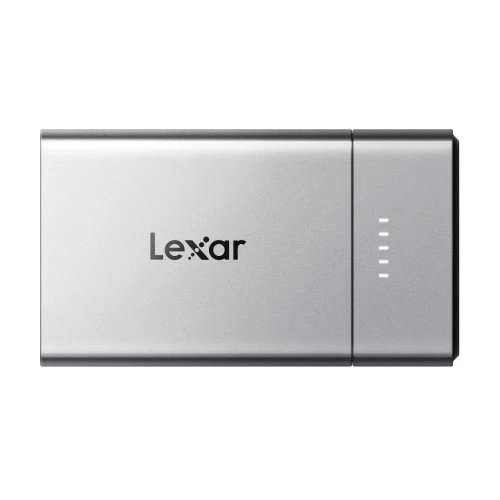
Lexar Professional Go Portable SSD with Hub
Key Features:
- Performance: USB 3.2 Gen 2 interface with read speeds up to 1,050MB/s and write speeds up to 1,000MB/s.
- Versatile Hub: Includes a hub with four USB Type-C connectors for expanded connectivity.
- Compact Design: Measures 1.71” x 0.98” x 0.32” and weighs only 13 grams.
- Durability: IP65-rated for dust and water resistance; 1-meter drop protection.
- Compatibility: Supports Mac® OSX 10.6+, Windows® 11/10/7/8, iOS, and Android 4.4+.
- Why It’s Great: Ideal for Mac users seeking high-speed storage with additional connectivity options, perfect for seamless video recording and efficient workflows.
Lexar SL500 Portable SSD
Key Features:
- Performance: USB 3.2 Gen 2×2 interface with read speeds up to 2,000MB/s and write speeds up to 1,800MB/s.
- Design: Slim, solid aluminum unibody construction, approximately the size of a credit card at 4.8mm thick.
- Durability: IP54-rated for dust and water resistance; drop-resistant up to 2 meters.
- Compatibility: Compatible with Mac® OSX 10.6+, Windows® 11/10/7/8, Android devices, iPhone 15 series, gaming consoles, cameras, and more.
- Why It’s Great: Offers exceptional performance and durability in a compact form factor, making it perfect for Mac users who need fast, reliable storage on the go.
Lexar SL300 Portable SSD
Key Features:
- Performance: USB 3.2 Gen 2 interface with read speeds up to 1,050MB/s and write speeds up to 1,000MB/s.
- Durability: IP54-rated for dust and water resistance; 2-meter drop protection.
- Design: Sleek, black finish with built-in double-layer graphite sheets for enhanced heat dissipation.
- Compatibility: Supports Mac® OSX 10.6+, Windows® 11/10/7/8, iOS, and Android 4.4+.
- Why It’s Great: Provides Mac users with a reliable and durable storage solution that is significantly faster than traditional HDDs, ensuring efficient backups and file transfers.
Lexar Professional Workflow Portable SSD
Key Features:
- Performance: USB 3.2 Gen 2×2 interface with read and write speeds up to 2,000MB/s.
- Durability: IP68-rated for dust and water resistance; constructed with scratch-resistant aluminum for enhanced heat dissipation.
- Compatibility: Designed to integrate seamlessly with Lexar Professional Workflow and Workflow Go systems.
- Capacity: Available in 2TB and 4TB options.
- Why It’s Great: Tailored for professional Mac users, this SSD offers high-speed performance and robust durability, making it ideal for intensive workflows and demanding environments.
How to Set Up an External SSD for Mac
Setting up your external SSD for macOS is simple and ensures you get the most out of your new drive. Follow these steps:
1. Connect the SSD
2. Open Disk Utility
3. Format the Drive
4. Name the SSD
5. Click Erase
Use Cases for External SSDs with Mac
External SSDs enhance your Mac experience in various ways, depending on your needs:
- Backup and Storage:
- Photo and Video Editing:
- Portable Workflows:
Why External SSDs Are a Must-Have for Apple Users
An external SSD is more than just extra storage—it’s a performance booster for your Mac. Whether you’re a creative professional, a gamer, or a casual user, these drives enhance speed, portability, and efficiency. With compatibility for macOS and sleek designs that match Apple’s aesthetic, external SSDs are a must-have accessory.
Comparing Thunderbolt and USB-C for External SSDs on Mac
When choosing an external SSD for your Mac, understanding the differences between Thunderbolt and USB-C connections is essential. Both are widely used on Apple devices, but they offer distinct advantages.
- Thunderbolt:
- USB-C:
How External SSDs Improve macOS Performance
An external SSD doesn’t just add storage to your Mac—it can significantly enhance your device’s overall performance in several ways:
- Running macOS from an External SSD:
- Improving Virtual Machine Performance:
- Optimizing Scratch Disks for Creative Software:
Maintaining Your External SSD for Longevity
To ensure your external SSD continues to deliver top performance, follow these best practices:
- Avoid Overfilling the Drive:
- Eject the Drive Safely:
- Update Firmware:
- Protect from Physical Damage:
- Monitor Health:
The Cost of External SSDs: Are They Worth It for Mac Users?
While external SSDs tend to be more expensive than traditional HDDs, their benefits make them worth the investment, especially for Mac users. Here’s why:
- Long-Term Value:
- Enhanced Productivity:
- Data Security:
- Portability:
Future Trends in External SSDs for Mac
The external SSD market is evolving rapidly, with new technologies enhancing speed, capacity, and functionality. Here’s what’s on the horizon:
- PCIe 5.0 Drives:
- AI-Driven Data Management:
- Higher Capacities:
- Integrated Cooling Solutions:
How to Choose the Right Capacity for Your Mac
Choosing the correct SSD capacity depends on your usage patterns and data needs. Here’s a quick guide:
- 1TB SSD:
- 2TB SSD:
- 4TB SSD or Larger:
Why External SSDs Are Better Than External HDDs for Mac Users
External SSDs offer several advantages over traditional HDDs, particularly for Mac users who prioritize speed and reliability:
- Faster Speeds:
- Silent Operation:
- Greater Durability:
- Energy Efficiency:
Enhance Your Mac Experience with the Right SSD
Elevate your Mac experience with the perfect external SSD that delivers speed, reliability, and ample storage for your needs. Whether you prioritize secure portability with the Samsung T7 Touch or maximum performance with the OWC Envoy Pro FX, there’s a solution designed for every Apple user.
Discover Lexar’s high-performance external SSDs, optimized for macOS, and upgrade your storage today!