


How to Choose the Best External SSD for Gaming
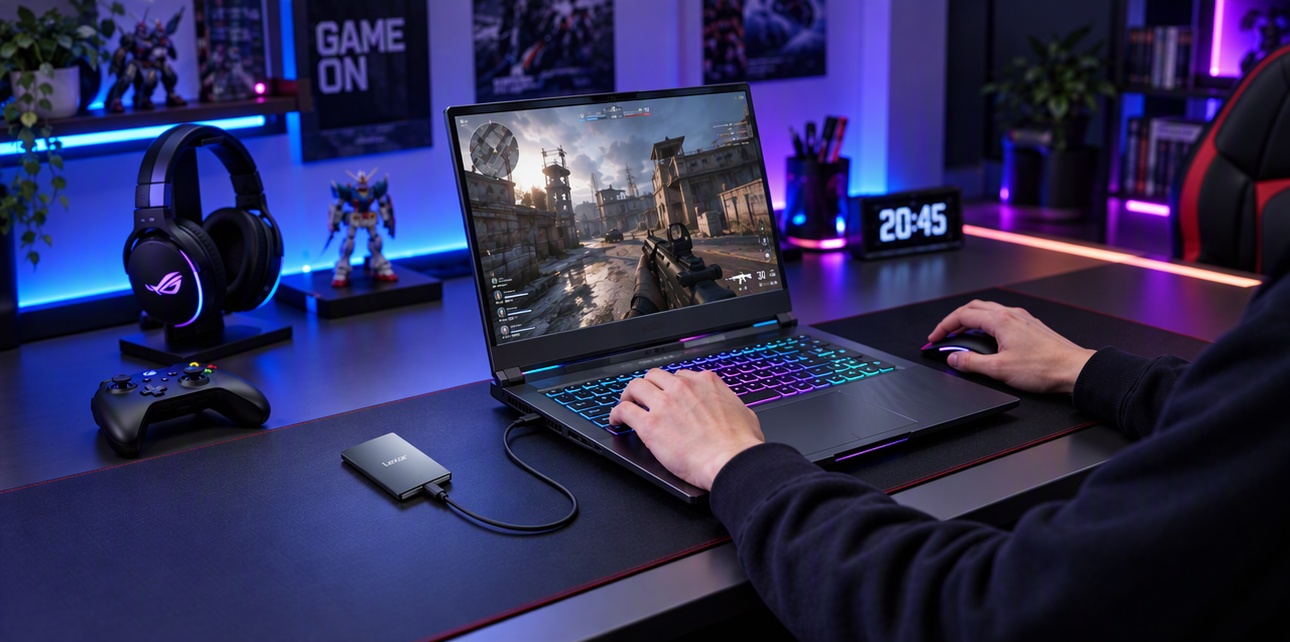
Running out of room on your gaming laptop? Tired of deleting one game to install another? An external SSD gives you another place to keep game files, without opening your computer or replacing its existing drive.
Before buying, answer three questions: can your device play games from external storage, what USB connection does it support, and how much capacity do you need? Those answers are more useful than choosing the largest speed number on the box.
Is an External SSD Good for Gaming?
An external SSD can be useful for expanding a game library, carrying game files, and running games where the platform and launcher allow it. On consoles, direct-play support depends on the game and system.
It is particularly practical when you need additional storage without an internal hardware upgrade. It can also hold games you want to move back to your device later.
Treat performance and compatibility separately. A drive can be fast enough to transfer large files while a console still prevents certain games from running over USB.
Can You Play Games Directly from an External SSD?
Check your platform before choosing a drive:
| Platform | What external USB storage can do |
| PC | Game files can be installed on another drive where the launcher and game allow it. Check their requirements for external installations. |
| PS5 | Play supported PS4 games directly. Store PS5 games, then move them to console or compatible M.2 storage before playing. |
| Xbox Series X|S | Play supported backward-compatible games. Most Series X|S-optimized games need internal storage or a compatible Storage Expansion Card for play. |
PlayStation’s USB storage guide and Xbox’s storage guidance explain these distinctions.
A faster external drive does not change console storage rules. Also check formatting requirements before moving a drive between devices; a PC game installation is not interchangeable with a console version.
What Should You Look for in an External Gaming SSD?
Match the USB Connection
USB-C describes the connector, so check the supported data-transfer standard as well.
USB 3.2 Gen 2x2 provides a 20Gbps connection class. To use a drive’s corresponding performance, the computer, port, and cable must support the required connection. A slower port limits the available bandwidth.
Check your device’s specifications before buying. Use a suitable data cable, and keep the connection secure during play and updates.
Choose Capacity Around Your Library
Look at your installed games and allow room for patches, downloadable content, and future releases.
- 1TB: Extra room for a selection of regularly played games.
- 2TB: More space for a broader library and additional content.
- 4TB: A larger collection, with less frequent storage cleanup.
- These are planning examples. Installation sizes vary, and usable capacity is lower than the advertised figure.
Consider Portability and Everyday Handling
A compact drive is easier to carry with a gaming laptop or keep beside a console. Think about where it will sit, cable reach, and whether it can remain securely connected.
Portable storage makes files easier to carry, but playing on another PC may still require signing in, linking the library, and meeting the game’s system requirements.

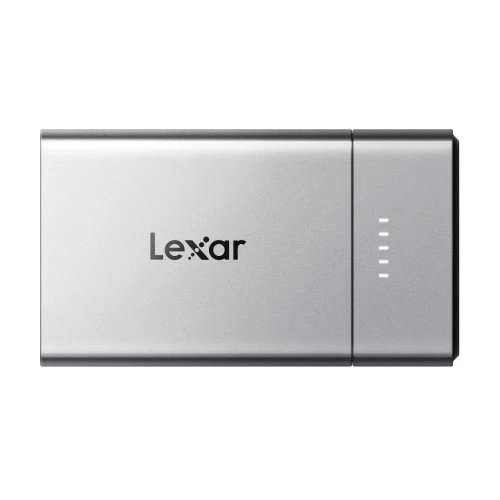
Lexar SL500: Portable Space for a Growing Game Library
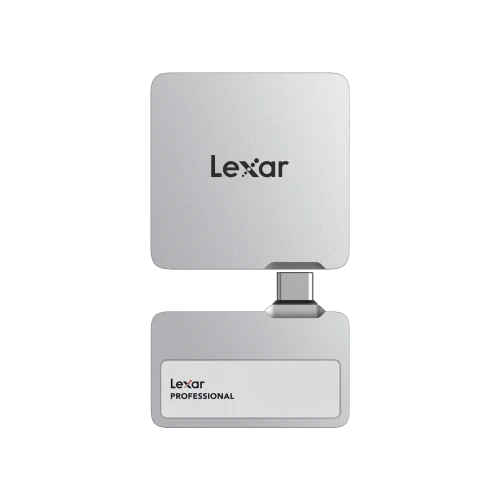
The Lexar SL500 Portable SSD offers 1TB, 2TB, and 4TB capacities, with read speeds up to 2,000MB/s and write speeds up to 1,800MB/s over USB 3.2 Gen 2x2.
Its compact aluminum construction and 43g weight make it easy to carry alongside a laptop. The included USB-C to USB-C cable provides a straightforward connection for compatible devices. With its thermal control design and high-speed transfers, the SL500 helps maintain consistent storage performance for game transfers and supported gameplay on compatible consoles.
For gaming, choose its capacity around your library, then confirm the host connection and platform’s storage rules. Its stated speeds require a compatible USB 3.2 Gen 2x2 connection; systems without that support can deliver lower performance.
How Do You Set Up an External SSD for PC Games?
Where your launcher allows external installations:
- Connect the SSD using a suitable USB port and data cable.
- Follow the launcher’s instructions to add a game-library location.
- Install supported games there, or use the launcher’s built-in move function.
- Keep the drive connected while games are running or updating.
- For example, Steam’s storage settings let you create another library location and move installed games. Check your launcher’s guidance rather than assuming every external installation is supported.
Does an External SSD Improve FPS?
An external SSD primarily adds storage and provides access to installed files. It does not directly resolve a CPU or GPU rendering bottleneck. Choose it for the storage problem you want to solve, such as limited capacity or carrying a game library.
Quick Buying Guide
The best external SSD for gaming should fit your actual setup. Confirm:
- Whether you need direct gameplay, game storage, or both.
- Your platform and launcher’s installation rules.
- The USB standard supported by your device and cable.
- Enough capacity for your library and updates.
- With the right platform support and connection, the Lexar SL500 provides a portable option for expanding how you store and manage your games.
SL500 speeds are based on Lexar internal testing using a compatible USB 3.2 Gen 2x2 host. Actual performance varies by device, connection, configuration, and workload. Usable capacity is lower than nominal capacity.