


SSD or RAM for PC Gaming: Which Should You Upgrade First?

With Gamescom wrapping up in late August and Tokyo Game Show taking place this September, you may already be adding games to your wishlist. But before upgrading your PC, consider what is holding it back. Perhaps you keep deleting games to make room for another download. Perhaps a game takes a long time to load, or your PC becomes less responsive when you leave other apps open. These problems can point to different upgrade needs.
Prioritizing an SSD when storage space or an older hard drive is the limitation. Prioritize RAM when your games and active apps need more working memory. Identifying the problem helps you put your upgrade budget where it matters.
What Do SSD and RAM Do in a Gaming PC?
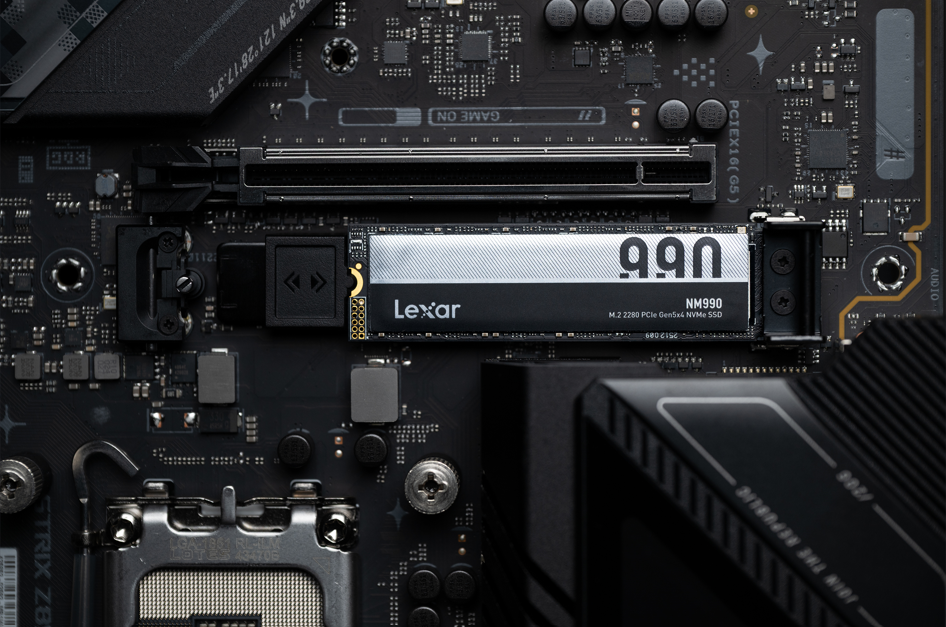
An SSD stores your operating system, installs games, and files. Its capacity determines how much you can keep installed, while its performance affects access to that data.
RAM is your PC’s temporary working memory, holding data used by your game and running apps, such as voice chat, browsers, and recording software. The two work together: adding RAM does not make room for more installed games, and a larger SSD does not increase RAM capacity.
When Should You Upgrade Your Gaming SSD?
If your games are installed on a mechanical hard drive, moving them to an SSD can significantly reduce loading waits. If you already use an SSD, start by checking available space. Regularly deleting games to install new ones is a clear reason to consider more capacity.
Plan around the games you want to keep installed, leaving room for updates and additional content. When comparing SSD speeds, remember that higher sequential performance does not produce an equivalent improvement in loading times; The game and wider system also matter.
Before choosing an internal SSD, check your motherboard’s supported interface, M.2 size, and cooling requirements. A drive should fit both your system and your storage needs.
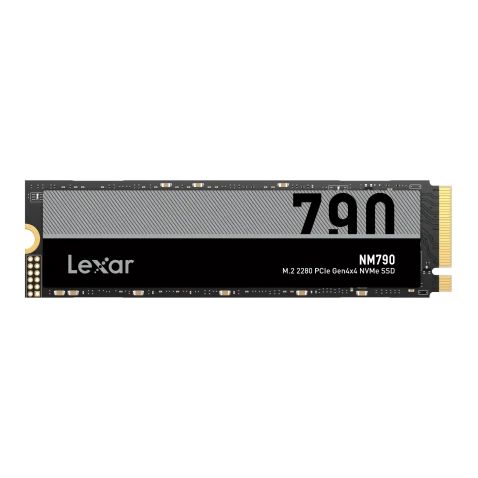
For compatible PCIe 5.0 PCs, the Lexar NM990 M.2 2280 PCIe 5.0 NVMe SSD offers a high-bandwidth M.2 2280 storage option. Its 4TB version reaches sequential read speeds up to 14,000MB/s and write speeds up to 11,000MB/s, providing capacity choices for growing game libraries.¹
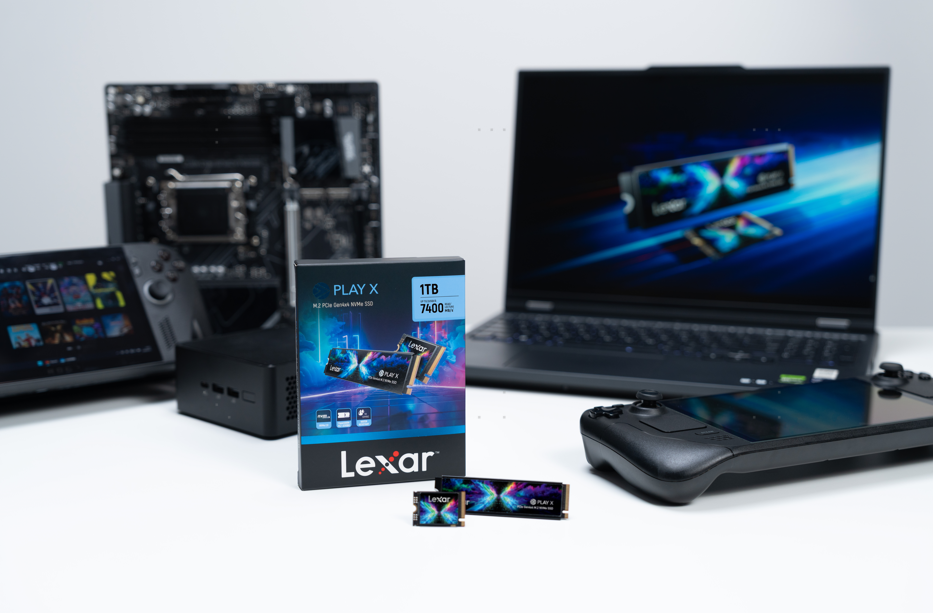
The Lexar PLAY X M.2 PCIe 4.0 NVMe SSD delivers read speeds up to 7,400MB/s and write speeds up to 6,500MB/s.¹ Support for M.2 2230 and M.2 2280 installation formats makes it a flexible option for compatible PC designs.
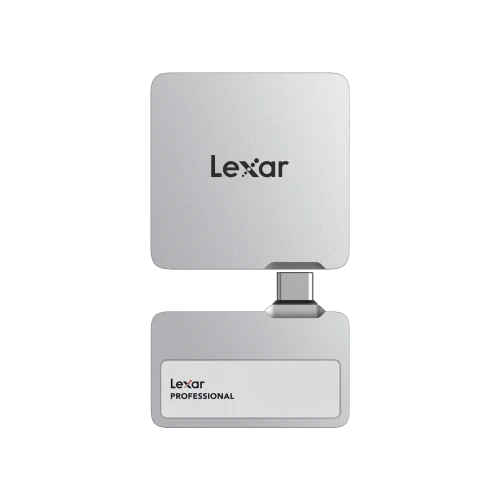
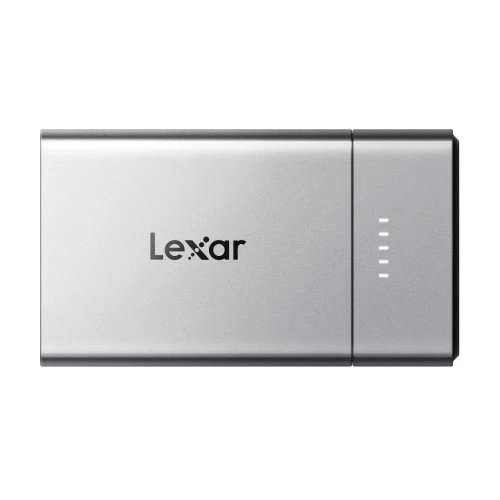
For storage you can carry between PCs, the Lexar SL500 Portable SSD offers capacities up to 4TB, with read/write speeds up to 2,000/1,800MB/s over USB 3.2 Gen 2x2.² It provides room for an external game library and large file transfers. Check your PC’s USB capabilities and your game launcher’s external-drive support before choosing this route.
When Should You Upgrade RAM for Gaming?
Start with your game’s recommended memory requirements, then check RAM use during a typical session in Windows Task Manager. High usage alone does not prove a memory problem. Look for recurring shortages alongside reduced responsiveness, especially when closing background apps improves the experience.
Moving from 16GB to 32GB can provide more room for multitasking when your current capacity is regularly stretched. If you already have sufficient RAM, extra capacity may make little difference. Choose capacity around your workload before comparing speeds.
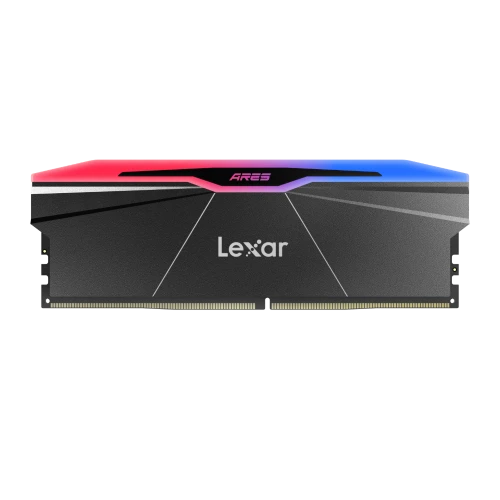
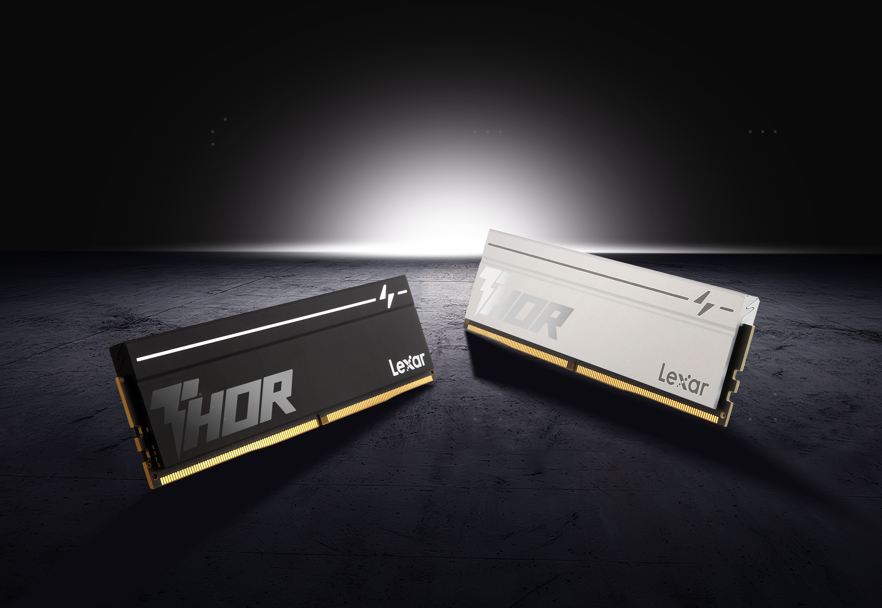
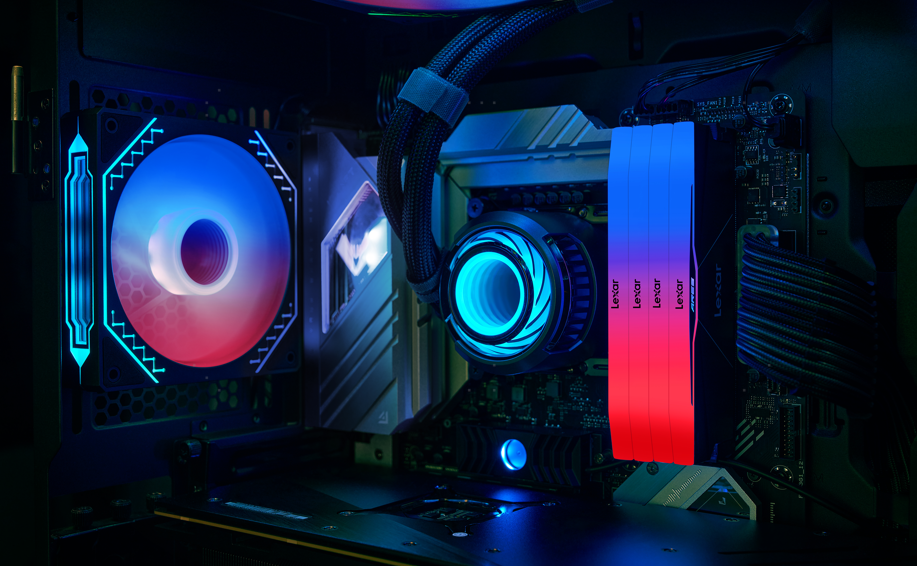
For DDR5 desktops, Lexar ARES RGB 2nd Gen DDR5 Desktop Memory includes 32GB and 128GB kits, with selected configurations reaching 8,000MT/s.³ Lexar THOR RGB 2nd Gen DDR5 Desktop Memory also offers 128GB kits, including 6,000MT/s and 7,600MT/s options.³
Both families support Intel XMP 3.0 and AMD EXPO memory profiles. Match the exact kit to your CPU and motherboard’s supported memory list; supported speeds depend on the platform and settings. DDR5 requires a compatible motherboard and cannot be installed in DDR4 slots.
Will Either Upgrade Improve Your FPS?
An SSD mainly improves storage capacity and data access. RAM helps when memory limits performance, but that is not the whole story. If you have enough storage and RAM but still miss your FPS target, check CPU, GPU, graphics settings, and temperatures before upgrading.
However, low FPS is not the only sign of a memory bottleneck. Stuttering, sudden frame drops, low 1% Low FPS, or performance loss while streaming or multitasking can all point to RAM. Capacity, frequency, and dual-channel configuration affect how stable your system feels.
An SSD makes loading faster. The right memory makes gameplay smoother. Find your bottleneck before you upgrade.
Quick Buying Guide: SSD or RAM First?
| Your main problem | Where to start |
| You keep deleting games to free up space | Add storage capacity |
| Games load slowly from a mechanical hard drive | Move them to a compatible SSD |
| Low available RAM coincides with reduced responsiveness | Consider more RAM after checking background apps |
| You need a game library you can carry | Consider a portable SSD and check launcher support |
| FPS remains low despite sufficient storage and RAM | Check CPU, GPU, settings, and temperatures |
Start with your current limitation, confirm compatibility, and choose the capacity and performance your games need. Lexar’s internal SSDs, portable storage, and DDR5 memory offer different upgrade paths for how you play.
¹ SSD speeds are based on Lexar internal testing and vary by capacity, host, configuration, and workload. NM990 figures quoted here apply to the 4TB version; PLAY X figures are product-line maximums.
² SL500’s stated speeds require a compatible USB 3.2 Gen 2x2 host connection and suitable cable. Other systems may deliver lower performance.
³ Memory speeds apply to selected configurations and are based on Lexar internal testing. Actual performance and profile speeds depend on the CPU, motherboard, BIOS, memory kit, and settings.