


How to Free Up Space for GTA 6 on PS5

If you’re installing GTA 6 to your PS5’s built-in drive, 180GB of free space leaves you 32GB short of PlayStation’s pre-load target. Aim for at least 212GB of available space on the drive you’ll use for Grand Theft Auto VI, as specified in PlayStation’s GTA VI pre-load guide. Start by checking what’s taking up space and which games you want to keep on hand.
Check How Much Space You Need to Free Up
From the PS5 home screen, go to Settings → Storage → Console Storage and check the available space. Open Games and Apps to see how much room your installed titles take up. If you already have an M.2 SSD, check its available space under Settings → Storage → M.2 SSD Storage. You can see where new games are set to install under Settings → Storage → Installation Location.
Use the available space on your intended installation drive to work out the shortfall. In the 180GB example, moving a 45GB game off the built-in drive would bring its available space to about 225GB. If your games are spread across multiple drives, check that the one you select is on the drive you’re trying to clear.
Clear Out Games and Add-Ons You No Longer Use
Go to Settings → Storage → Console Storage → Games and Apps. Select a game you’ve finished or an app you no longer use, check how much space it takes up, then select Delete. If you want to reinstall a digital game you own later, you can find it in your Game Library.
If you’re only a few gigabytes short, look for Customize beside the games you still play. Where that option is available, you can remove individual add-ons or parts of a game you’re done with, as explained in PlayStation’s guide to managing PS5 storage. Game progress is managed separately under Settings → Saved Data and Game/App Settings.
If you record gameplay, PlayStation’s guide to managing captures explains how to free space in Media Gallery on the games home screen: open an old clip and select Delete if you no longer need it. This can help close a small gap while keeping your games installed.

Move Games to a USB SSD to Make Room
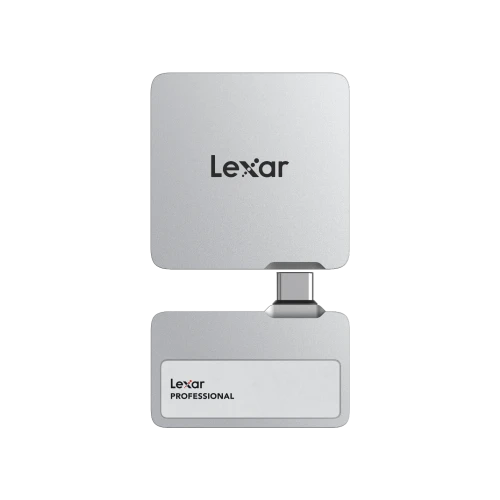
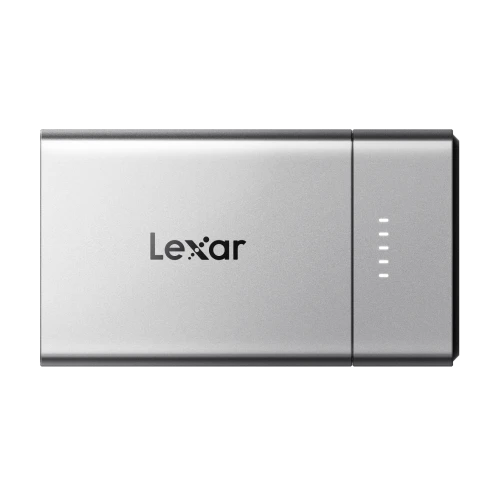
If you plan to come back to a game later, you can move its installation to USB extended storage. For example, you can move that 45GB title to a Lexar SL500 Portable SSD.
Connect the drive directly to a SuperSpeed USB port on your PS5, following PlayStation’s USB extended storage guide. If you’re setting it up as extended storage for the first time, back up any files on the drive first. Formatting erases the drive’s existing contents. Then go to Settings → Storage → USB Extended Storage and select Format as USB Extended Storage.
Open Game Library and highlight a PS5 game you want to move.
Press Options and select Move Games and Apps. If your console has both an M.2 SSD and a USB drive connected, choose Movable to USB Extended Storage.
Select the games you want to transfer and choose Move.
To play a PS5 game you’ve moved to USB storage, find it in the Installed tab of Game Library, press Options, and select Copy to return it to console storage. You can also copy the game to a compatible M.2 SSD and launch it from there; PlayStation’s PS5 storage options sets out what each destination allows.

Use an M.2 SSD to Keep More Games Ready to Play
If you already have a compatible M.2 SSD installed, move a game you play regularly to that drive. You’ll free up room on the built-in drive and can still launch the moved game directly from your library. Use Move Games and Apps. If USB extended storage is also connected, choose Movable to M.2 SSD Storage.
If the M.2 SSD already has enough free space for GTA 6, you can choose it as the destination for new PS5 games under Settings → Storage → Installation Location. If you haven’t added one yet, PlayStation’s M.2 SSD guide covers which drives fit and how to install them.
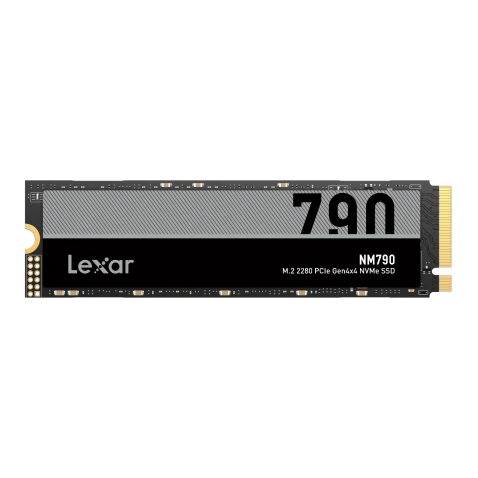
If you regularly run out of room for new games and updates, the Lexar NM790 with Heatsink is available in capacities up to 4TB. That gives you room to keep GTA 6 alongside more of your favorite PS5 games, all ready to launch directly from the drive. For help choosing a capacity, see our PS5 SSD upgrade guide.
Once you’ve moved or removed the games you chose, return to Settings → Storage to confirm the available space on your installation drive. Then return to GTA 6 on your PS5 to start or resume the download.
Make Room for GTA 6 and Keep Your Favorite Games
Use PlayStation’s 212GB pre-load target to see how much space you need to free up. If you’re only a few gigabytes short, removing unused add-ons or old captures may be enough. For larger transfers, archive games you plan to revisit on a USB SSD, or move the games you play regularly to a compatible M.2 SSD to keep them ready to launch.