


How to Add an M.2 SSD to a PS5 Console?
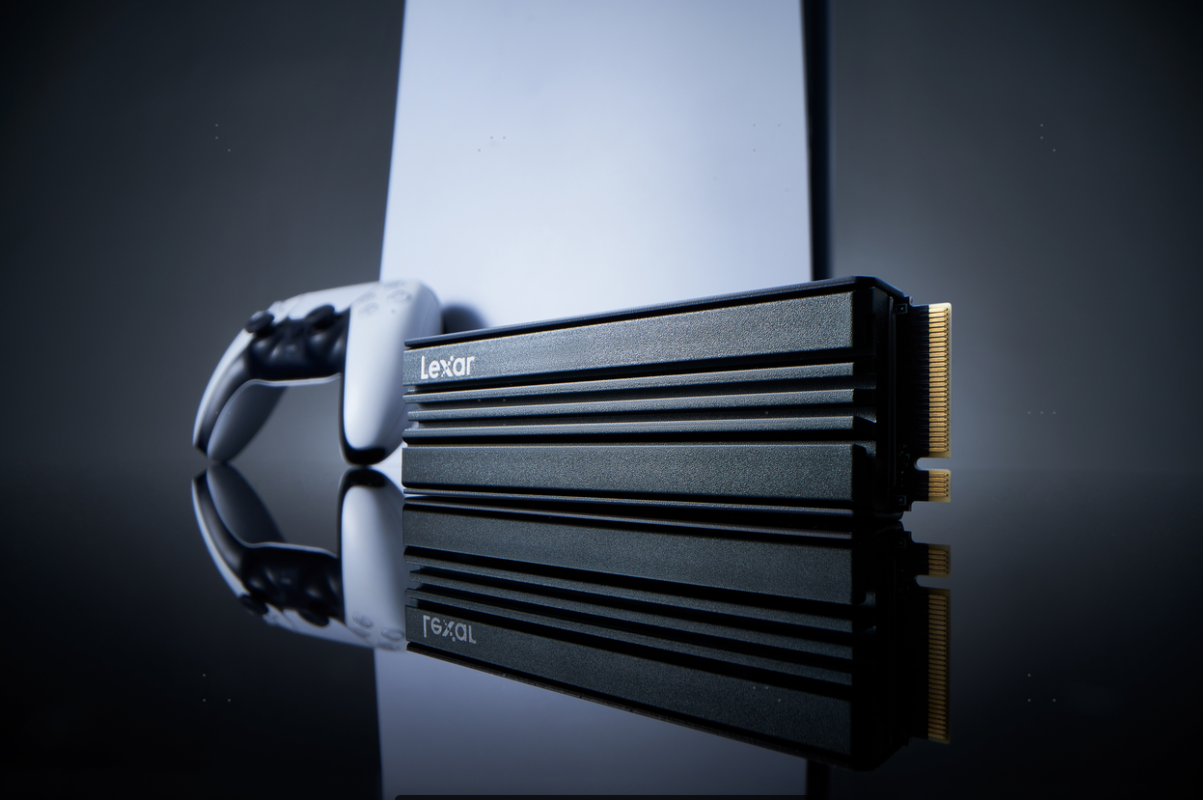
New releases, seasonal updates, and multiplayer favorites can quickly fill your PS5 storage. With major releases such as Call of Duty: Modern Warfare 4, now is a good time to make room for your next game.
To add an M.2 SSD to a PS5 console, turn off and unplug the console, open the expansion bay, install a compatible SSD with suitable cooling, replace the covers, and format the new drive when prompted. You can then move games to it and set it as your installation location.
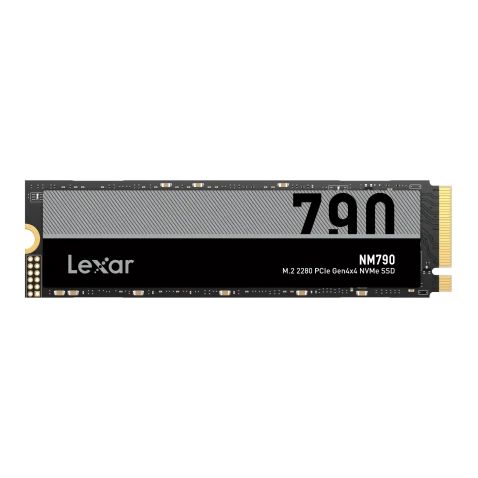
We’ll walk you through the process using Lexar NM790 with Heatsink. Already have your drive? Jump to the installation steps.
Does Your PS5 Have Enough Storage?
Check Settings > Storage to see your available space. If you regularly remove games you still enjoy, an M.2 SSD lets you keep more of your library installed. PlayStation’s storage management guide explains your options.
Unlike USB extended storage, a compatible internal M.2 SSD lets you play PS5 games directly from the drive, without copying them back to console storage first.
PS5 M.2 SSD Compatibility Requirements
Before choosing a drive, check that it meets PlayStation’s M.2 SSD requirements:
| What to check | What your PS5 needs |
| Interface | PCIe Gen4x4 M.2 NVMe SSD, Key M |
| Capacity | 250GB to 8TB |
| Sequential read speed | 5,500MB/s or faster recommended |
| Cooling | An effective cooling structure, such as a heatsink |
| Physical fit | A supported M.2 size, with the cooling structure within Sony’s dimensional limits |
M.2 SATA SSDs are not supported. When checking physical fit, include the heatsink in the overall dimensions of the drive.
What Specs Actually Matter?
For PS5 storage expansion, we recommend an SSD with a sequential read speed of 5,500MB/s or faster, in line with PlayStation’s official guidance. Read speed matters because PS5’s storage architecture relies on fast access to game data for loading and streaming assets during play.
Write speed can also affect how long it takes to install or copy games to the SSD. However, PlayStation’s 5,500MB/s recommendation applies specifically to sequential reads.
Choose enough capacity for your current library and future releases, too. A preinstalled heatsink helps dissipate heat during gameplay and simplifies installation.
You’ll find NM790 with Heatsink capacity options below the installation guide.
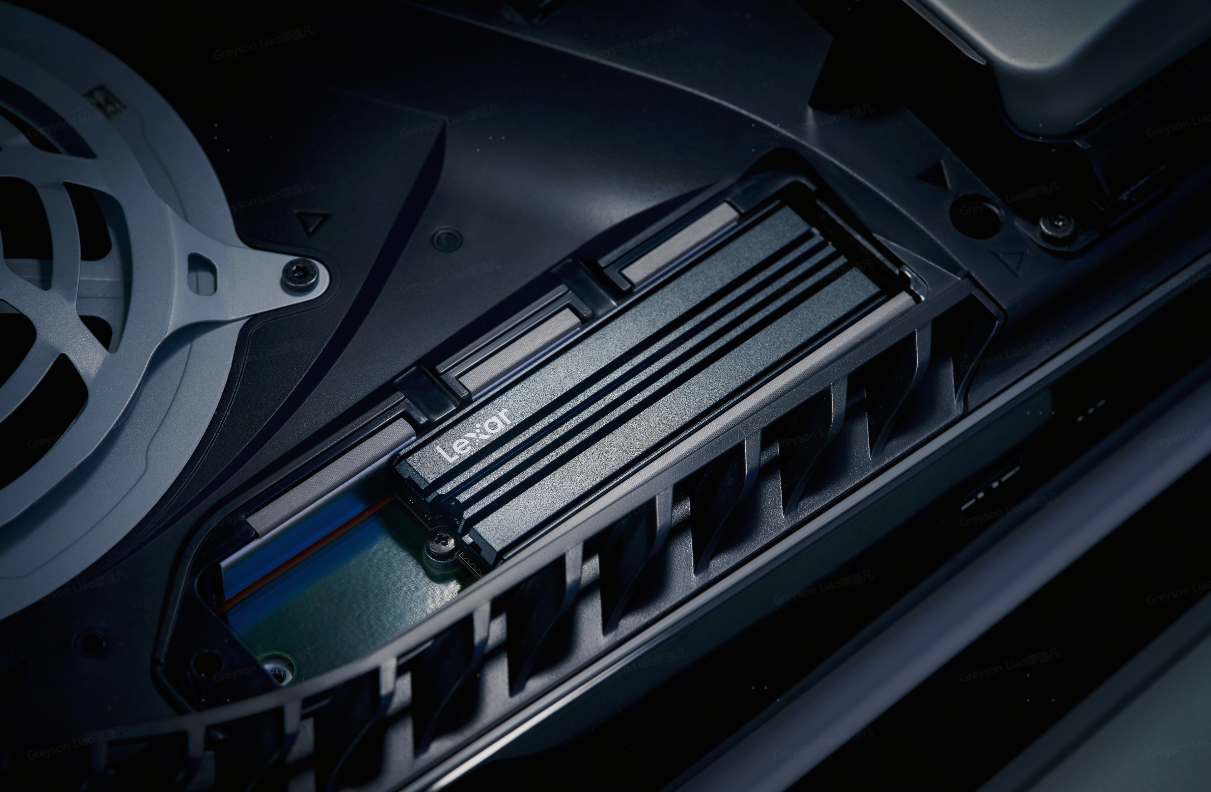
How to Add an M.2 SSD to a PS5 Console: Step by Step
Before you begin, update your PS5 system software and prepare a #1 Phillips screwdriver. Back up any files already on the SSD, as formatting it for first-time PS5 use will erase its contents.
1. Turn off and prepare the console
Turn off your PS5 completely and wait for the power indicator to go out. Disconnect the power cord and other cables, then allow the console to cool. Place it on a soft cloth on a flat surface and remove the base or feet as directed for your model.
2. Remove the correct outer cover
The cover you need to remove depends on your PS5 model. CFI-1000 models use the large cover without the PlayStation logo, while CFI-2000/7000 models use the triangle-marked cover. Follow PlayStation’s instructions for your console model to access the expansion bay.
3. Open the SSD bay and position the spacer
Touch a grounded metal object to discharge static electricity before handling the SSD. Unscrew and remove the metal expansion-slot cover. Inside the bay, remove the retaining screw and move the spacer to the 80mm position for NM790 with Heatsink. Set the screws aside where they cannot roll away.
4. Install and secure the M.2 SSD
Hold NM790 with Heatsink by its edges without touching the contacts. Align the connector notch with the slot and insert the drive fully at an upward angle. Gently lower it onto the spacer and secure it with the retaining screw. Check that the board rests flat on the spacer before tightening.
For a closer look at the connector and spacer arrangement, refer to the diagrams in PlayStation’s installation instructions.
5. Reassemble the console and format the M.2 SSD
Reattach the metal expansion-slot cover and the console’s outer cover, then refit the base or feet. Reconnect the cables and turn on your PS5. Follow the on-screen instructions to format the new SSD, keeping the console powered on until the process is complete.
6. Move games and set the installation location
Go to Settings > Storage > M.2 SSD Storage to view your new drive. To install future PS5 games there automatically, open Settings > Storage > Installation Location and select M.2 SSD storage.
You can also move games you already own. Highlight a title in the Game Library, press Options, and select Move Games and Apps. Choose the games you want to transfer, then confirm the move. See PlayStation’s guide to moving games.
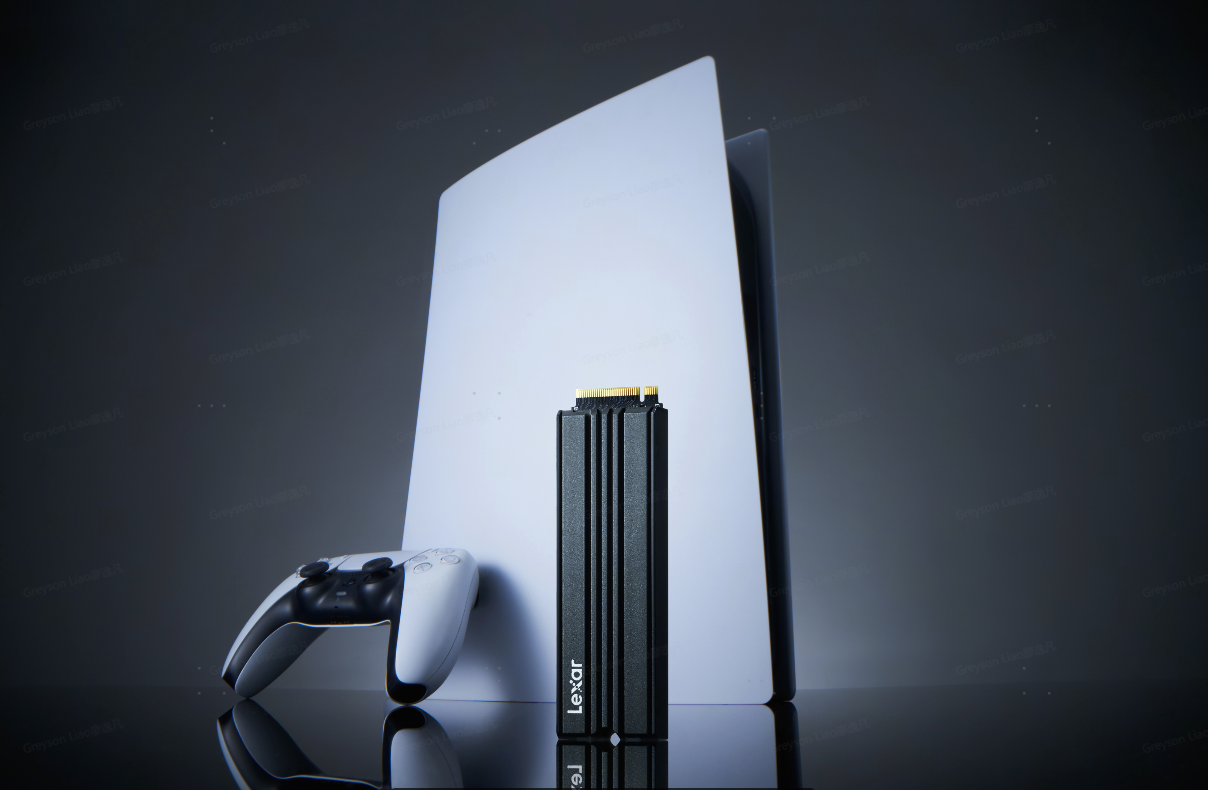
Lexar NM790 with Heatsink: More Room for Your PS5 Games
Compatible with PS5, the Lexar NM790 with Heatsink M.2 2280 PCIe Gen 4x4 NVMe SSD combines fast storage with an integrated heatsink. Its cooling design helps dissipate heat during gaming sessions, while the preinstalled heatsink makes it easier to prepare the drive for installation.
With sequential read speeds up to 7,400MB/s and write speeds up to 6,500MB/s¹, NM790 with Heatsink provides fast storage for your growing game collection. Once installed and formatted, you can download games to the drive and play directly from it.
Available in 1TB, 2TB, and 4TB, NM790 with Heatsink gives you a choice of capacities to suit your library and is backed by a five-year limited warranty.
Quick Buying Guide: How Much Storage Do You Actually Need?
The best capacity depends on how many games you like to keep installed:
| NM790 with Heatsink capacity | A good fit for… |
| 1TB | A smaller selection of regularly played games, with room to add more. |
| 2TB | Several large games alongside your multiplayer favorites. |
| 4TB | A broad game library with less frequent storage cleanup. |
Check the space your current games use, then allow room for updates and future releases. Since installation sizes vary by game and content, your own library is the most useful guide.
For an even larger installed library, Lexar PLAY 2280 PCIe 4.0 SSD offers capacities up to 8TB and also includes a heatsink designed for PS5 storage expansion.
FAQs About Adding an M.2 SSD to PS5
Do you need to format an M.2 SSD for PS5?
Yes, when setting up a drive for first-time PS5 use. Follow the console’s formatting prompt after installation. Formatting erases existing files on the SSD, so back them up first.
Does a PS5 M.2 SSD need a heatsink?
PS5 requires effective SSD cooling, such as a heatsink. NM790 with Heatsink comes with an integrated heatsink, so no separate heatsink assembly is needed.
Can you play PS5 games directly from an M.2 SSD?
Yes. Once a compatible M.2 SSD is installed and set up, you can download, move, and play PS5 games directly from it.
Ready to add an M.2 SSD to your PS5? Explore Lexar NM790 with Heatsink and make room for your next game.
¹ Speeds are based on Lexar internal testing. Maximum speed when used with PS5 is up to 6,500MB/s. Actual performance and usable capacity may vary. Follow PlayStation’s current installation instructions for your console model.