


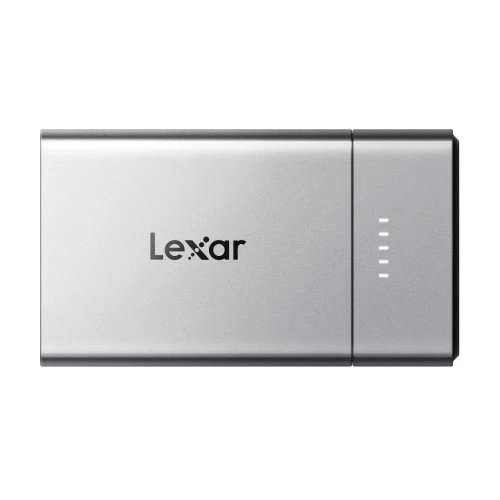
How to Record High-Quality Mobile Video Directly to an External SSD

A new phone can inspire more ambitious videos, from travel stories to interviews. High-resolution footage and formats such as ProRes also create larger files, making storage part of your filming setup.
Direct external recording saves footage to an SSD as you shoot. Afterward, connect the drive to your computer to organize and edit the clips. Here is how to set up an iPhone or Samsung Galaxy phone and choose a Lexar SSD for your workflow.
What You Need Before You Start
Confirm that your phone supports external recording in your chosen format. A USB-C port alone does not establish compatibility.
For iPhone ProRes, Apple specifies:
- An SSD formatted as exFAT, without password encryption.
- A USB 3 cable rated for at least 10Gbps.
- Write speeds of at least 220MB/s for 4K60 or 440MB/s for 4K120.
- A maximum drive power draw of 4.5W for these modes.
- These thresholds apply to Apple’s ProRes workflow. Samsung recording options depend on the model, One UI version, and selected mode.
- The SSD must maintain sufficient write speed throughout recording. Choose capacity around your shooting time, leaving spare space for additional takes.
Connect, Configure, and Test
1. Prepare and connect the SSD.
Back up existing files before formatting, which erases the drive. Use exFAT for the workflows below; it avoids FAT32’s 4GB individual-file limit. If formatting on a computer, select exFAT before reconnecting the drive to your phone. For 4K120 ProRes, Apple also instructs users to reformat before each recording session, after copying off footage.
Connect the SSD using its supplied or recommended cable or connector. Secure it without covering the lenses or pulling on the phone’s port. Magnetic attachment holds the drive; the wired connection carries data.
Check that the SSD appears in your phone’s file manager, then follow the relevant camera setup below.
2. Choose your phone’s recording setup.
For iPhone
Open Settings → Camera → Formats and enable Apple ProRes. On iPhone 18 Pro models, complete Configure Pro Video Storage, choose the reserved amount, and tap Update Pro Video Storage. This reserves internal storage for pro video.
Keep the SSD connected, open Camera → Video, select ProRes, and choose your resolution and frame rate. Follow Apple’s camera guide for your model’s controls, then verify the destination with the test below.
For Samsung Galaxy
The Galaxy S25 series and supported newer models can record directly through Samsung’s Camera app. The setting location depends on your One UI version:
One UI 7.0–8.0: Install or update Samsung’s Camera Assistant from the Galaxy Store. Open Camera → Settings → Camera Assistant and enable Save videos to external storage.
One UI 8.5 and later: Open Camera → Settings and enable the external-storage option under Video.
With the SSD connected, return to Video or Pro Video, choose your recording settings, and start recording. Look for the USB-C indicator and remaining recording time in the viewfinder.
3. Verify where the video is saved.
Record approximately one minute, stop, and let saving finish. On iPhone, open the drive under Files → Browse → Locations. On Samsung, open My Files → USB storage → DCIM.
Find and play the new clip directly from the SSD. Check picture and sound, and use its file size to estimate storage needs. Before a longer shoot, test with your intended microphone and power setup.
Before filming, clean the lens, check focus and exposure, and listen to a test recording to confirm that speech is clear. During filming, monitor remaining space, battery, and warnings. Keep the drive connected until recording and saving finish. Eject it where available, then disconnect and back up important footage.
Choose a Lexar SSD for Your Setup
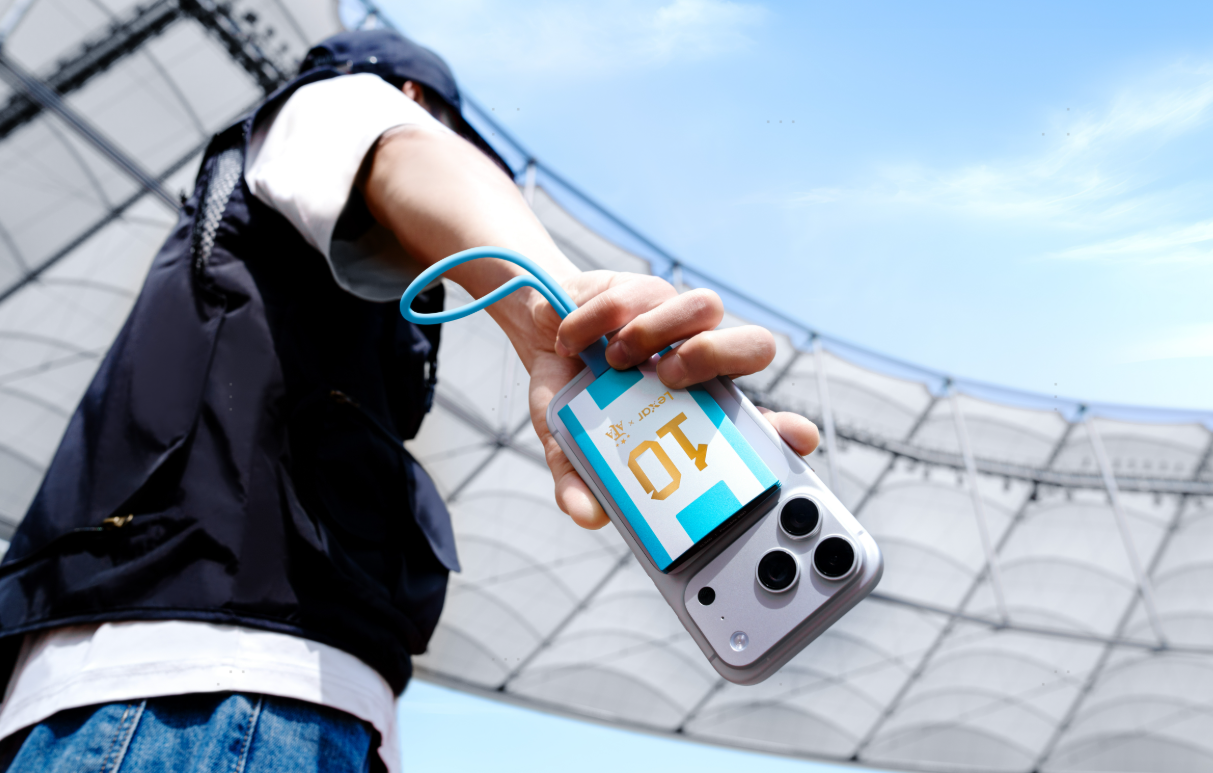
Lexar SL500: room for footage and fast transfers
The Lexar SL500 Portable SSD supports direct ProRes recording on compatible iPhones and offers 1TB, 2TB, and 4TB capacities. Speeds reach up to 2,000MB/s read and 1,800MB/s write,¹ helping move larger projects to a computer. Maximum speeds require USB 3.2 Gen 2x2 support.
The SL500 with Magnetic Set includes a magnetic protective sleeve, an additional magnetic ring, and a wrist strap. The SL500 Portable SSD Elite Legends Series offers official AFA co-branded styling inspired by Argentina’s blue-and-white colors.

Lexar Muse: a slim fit for your phone
The Lexar Muse Ultra-Slim Portable SSD has a metal body approximately 3.8mm thick at its thickest point, tapering to 1mm at the edge. Its magnetic sleeve and supplied SnapLink Magnetic Cable keep the setup neatly arranged. Write speeds up to 1,000MB/s¹ and external ProRes support on compatible iPhones make Lexar Muse a practical option for extra storage with minimal added bulk.
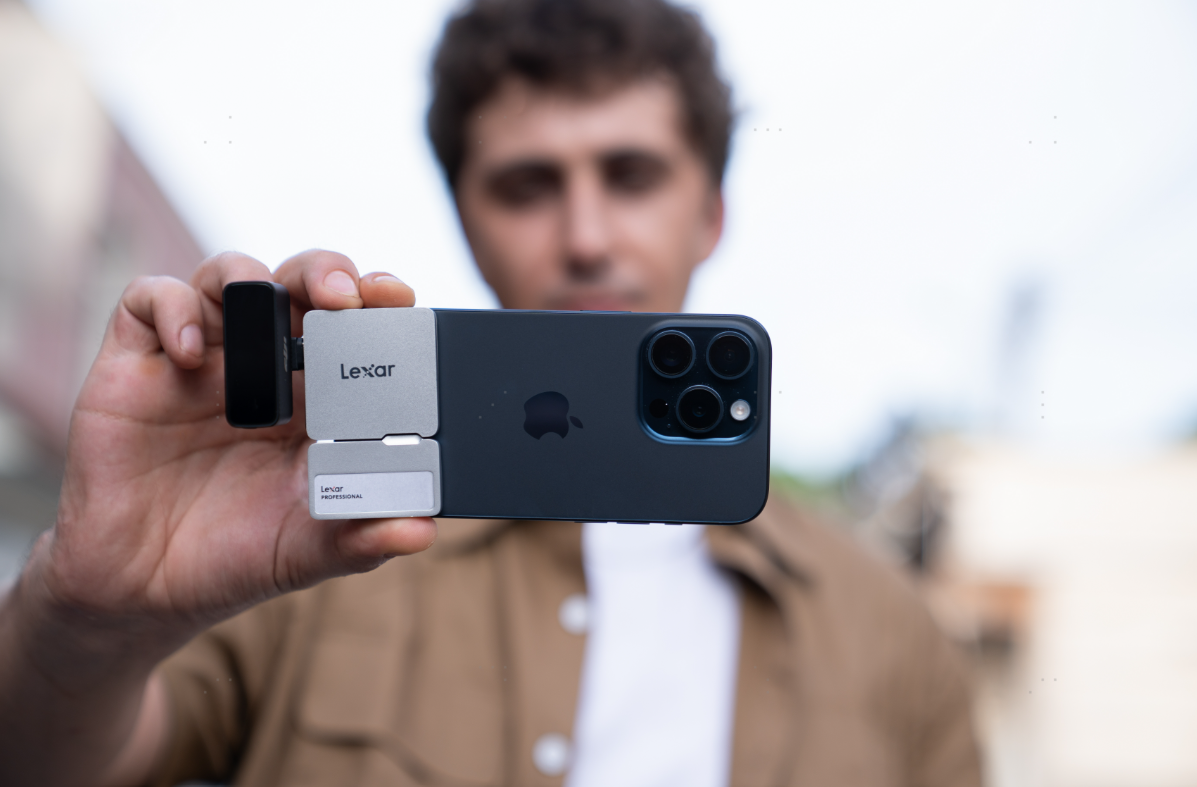
Lexar Professional Go: build out your filming setup
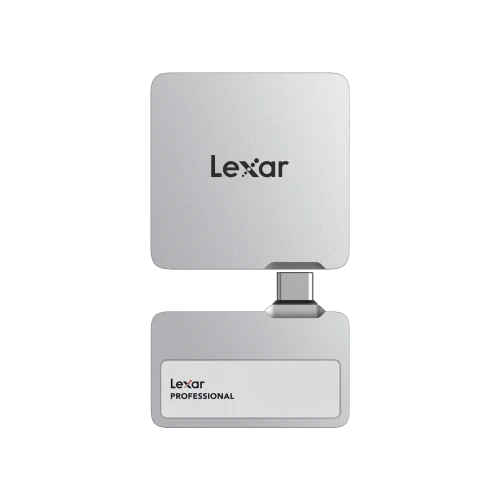
The Lexar Professional Go Portable SSD with Hub offers 1TB and 2TB capacities and write speeds up to 1,000MB/s.¹ Use the SSD independently, or add the hub to connect compatible microphones, lighting, and external power. This flexibility suits interviews and productions that need accessories alongside storage.
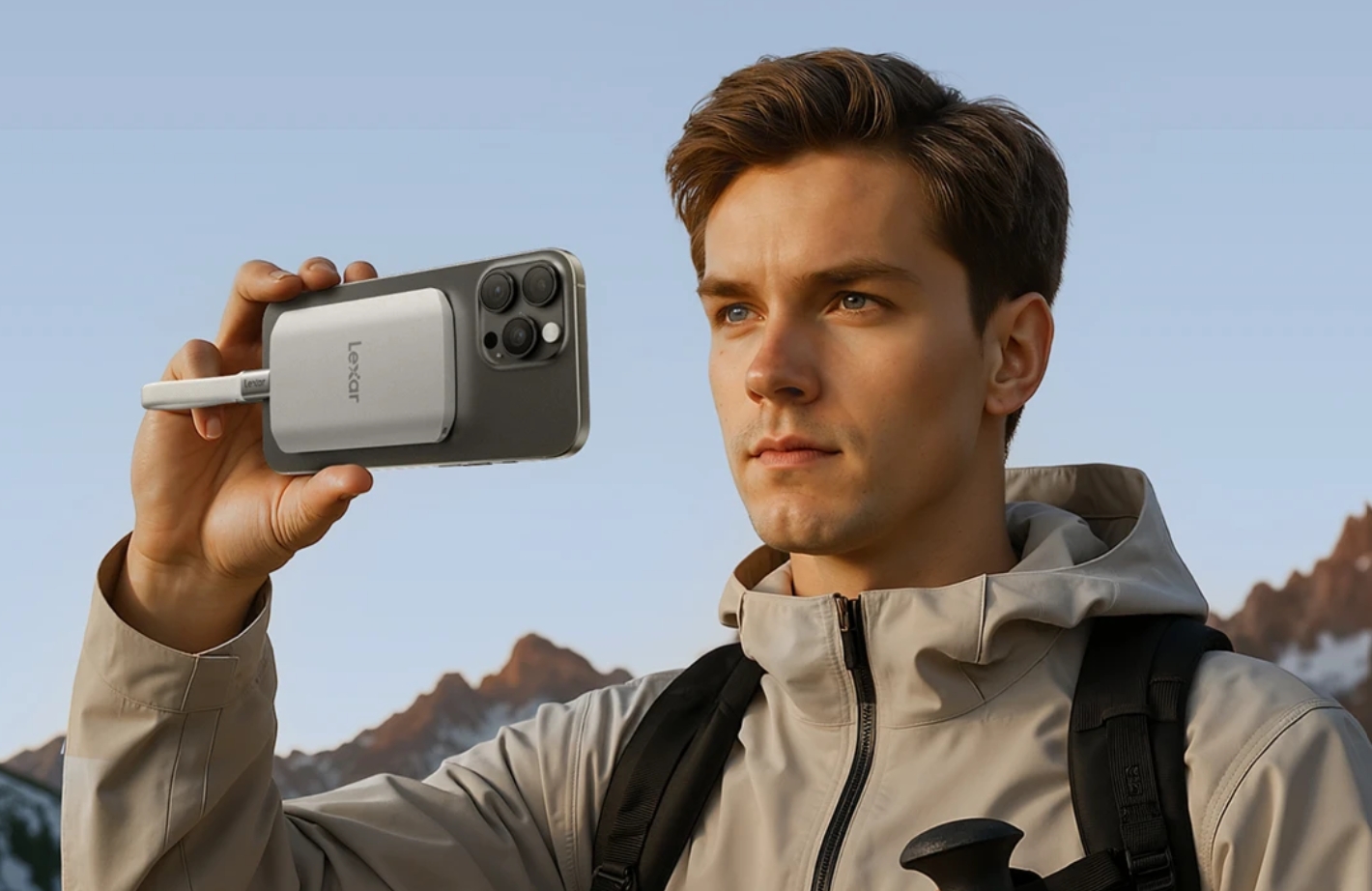
Lexar ES5: magnetic storage for outdoor shoots
The Lexar ES5 Magnetic Portable SSD combines MagSafe-compatible attachment with an included metal ring for additional mounting options. It supports Apple ProRes and Samsung Pro Video, with read and write speeds up to 2,000MB/s¹ over USB 3.2 Gen 2x2. Its silicone finish provides a comfortable grip, while IP65 dust and water resistance² adds protection for outdoor use.
Quick Troubleshooting
SSD not detected?
Reconnect it, try the recommended data cable, and check format and power requirements.
Clips saving internally?
Check that ProRes is enabled on iPhone, or reselect the SSD folder in your Android recording app.
Recording stops or shows a speed warning?
Check free space, cable speed, and power. Lower the resolution or frame rate and retest. If a temperature warning appears, pause and let the equipment cool.
¹ Maximum speeds are based on internal testing; actual performance varies. Recording compatibility depends on the phone, app, connection, and settings. Product availability varies by region.
² IP65 protection is based on controlled testing. Actual resistance may vary; liquid and dust damage are not covered by the warranty.